Show/Hide Attributes
When you add a business object to the screen, attributes whose includeInCompactView property are set to true are automatically displayed on the screen.
If no attributes are marked for includeInCompactView (e.g. no attribute in Purchase Agreements business is marked for includeInCompactView), then the screen (UI) will be blank after the business object is added.
To select more attributes to be displayed on the screen or to hide attributes
- Click on the
Select Attributes for Displayicon (the red angled brackets on the right hand side of the screen)

-
Click
Attributesa. Check an attribute to have it displayed
b. Uncheck an attribute to hide it
Note If you've already downloaded data, and then you select an attribute to be displayed on the screen, you have to re-download the data to see values for the attribute
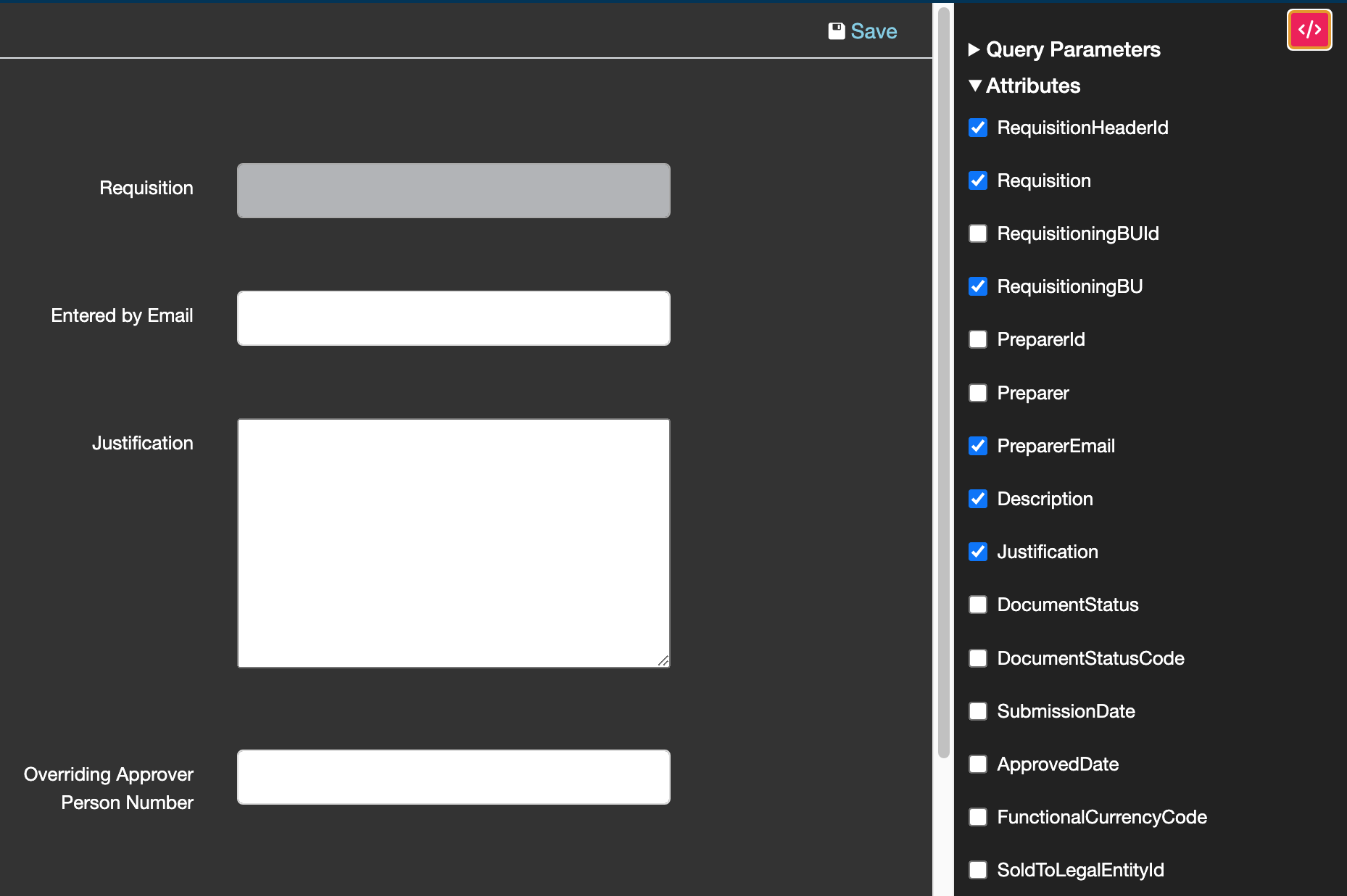
-
When you're done, click the
Select Attributes for Displayicon again to hide the panel -
If you want to display this set of attributes anytime you access this business object or launch the Application,
a. Save it as a template
b. Link this template to the business object
For a detailed guide, refer to the Using Templates section of this documentation