Using Templates
As earlier stated, when you add a business object to the screen, attributes whose includeInCompactView property are set to true are automatically displayed on the screen. This is the default template.
You can choose to show/hide attributes of a business object (see Show/Hide Attributes). To always display this set of attributes anytime you access this business object or launch the Application,
-
Save this as a template
a. Click on the
Save Templatesicon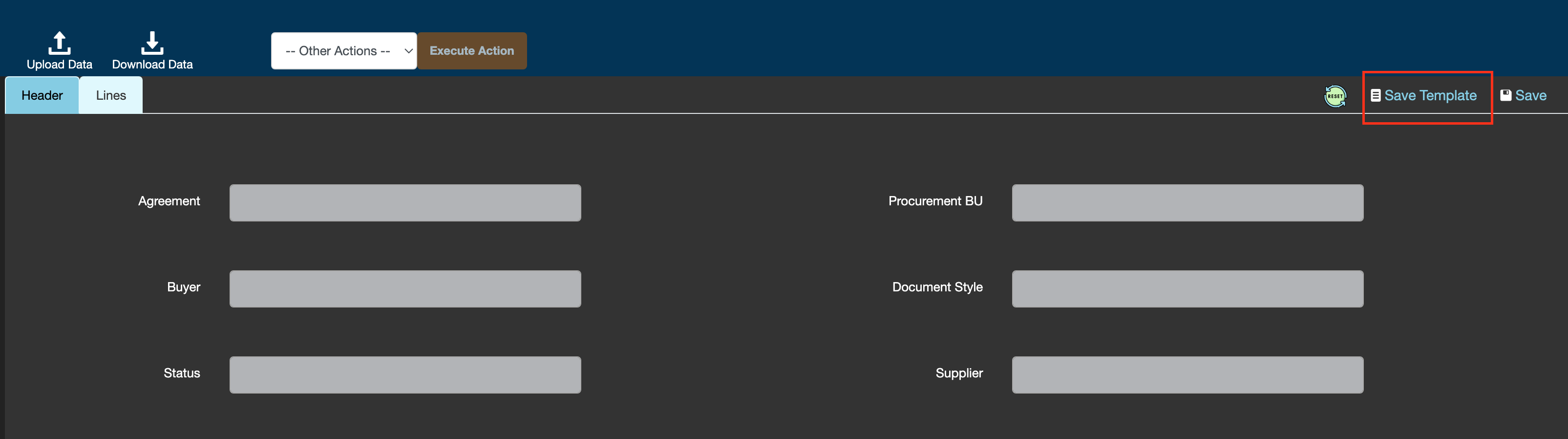
b. Enter a file name
c. Click on Save
-
Link the template to the business object
a. Select the business object
b. Click on the
Edit BOiconc. Scroll to the bottom and look for the label,
Saved Templateand selectOther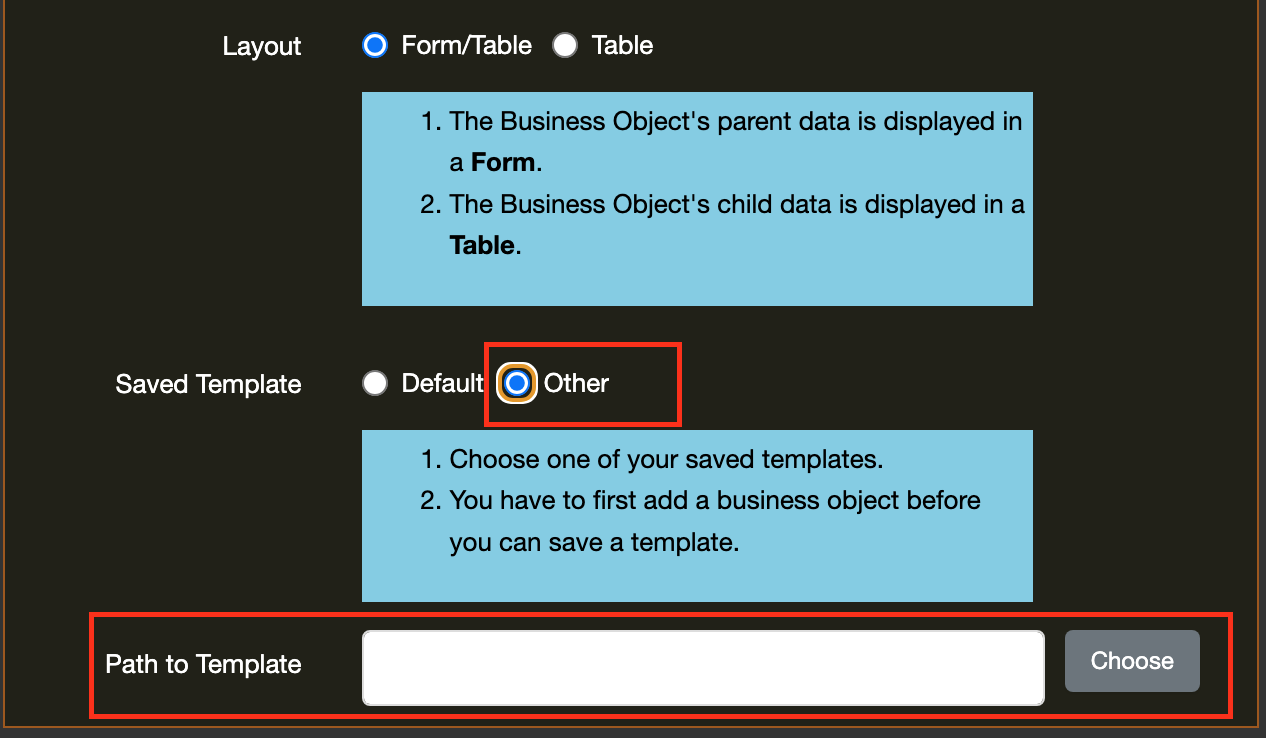
d. A field for you to pick a template will become visible. Choose the template you just saved
e. Click on
Save. (The page will refresh and going forward the template will be applied anytime you load the business object)Note: You don't have to refresh your schema so click on
Saveand notSave & Refresh Schema