Upload/Download Data
To retrieve a specific record of a business object (e.g. to retrieve a specific Purchase Requisition or Invoice), you use the Download Data button.
To upload changes you've made (e.g. after entering data for a new Purchase Requisition or Invoice), you use the Upload Data button.
To execute other actions on a business object, select the relevant action from the Other Actions drop down and then click the Execute Action button
Configure query/download parameters
Before you can download data (search for), you have to configure attributes against which your query will be run. For example, to download invoice data, you have to first setup a query parameter with invoice number as the query attribute.
You can either specify search parameters or pick a finder.
-
Click on the
Select Attributes for Displayicon (the red angled brackets on the right hand side of the screen) -
Select
Query Parameters > Manage Query Attributesa. Pick between
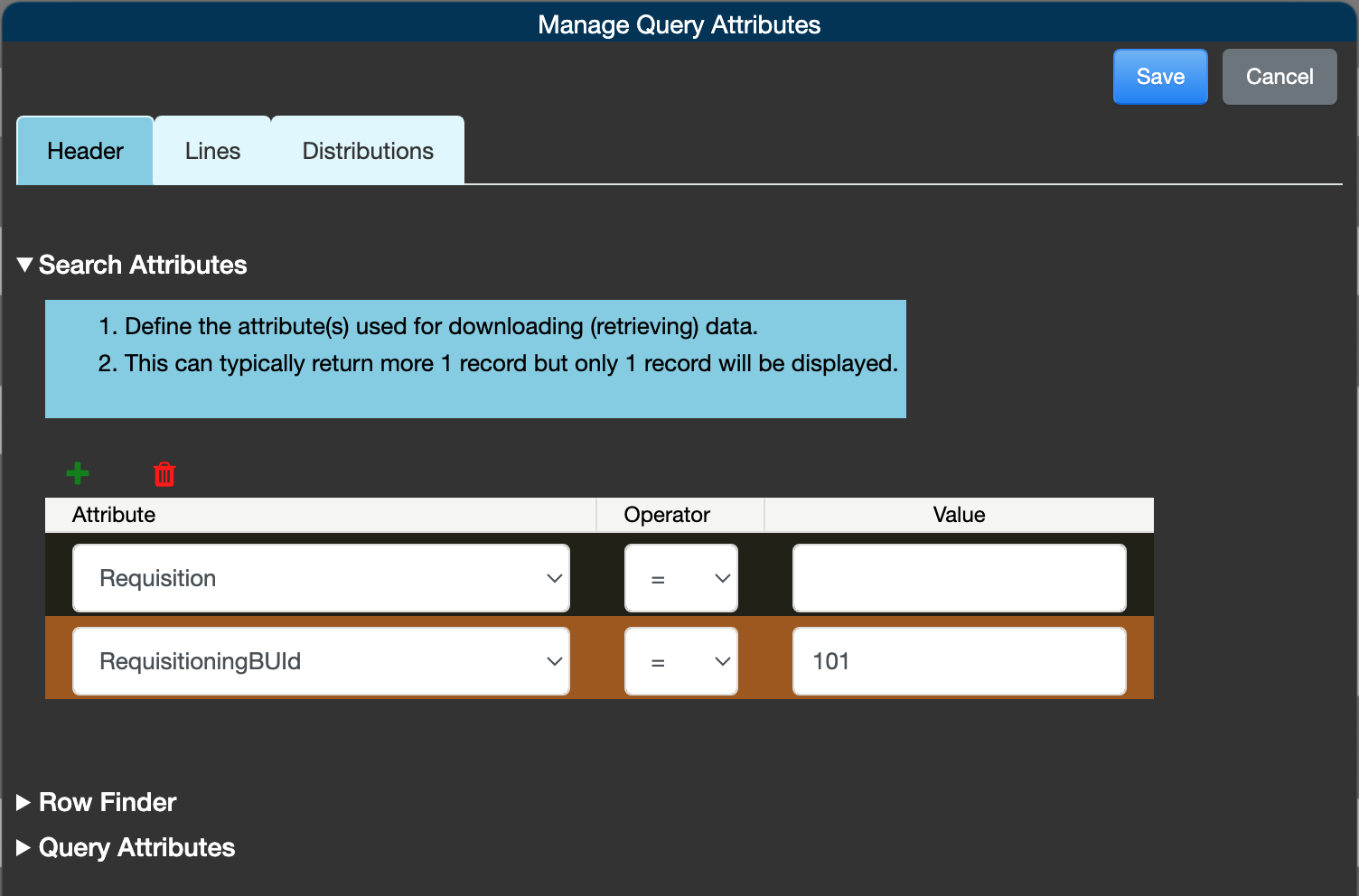
Search AttributesandRow Finderi. You can specify multiple
Search Attributesii. To provide the value of an attribute at runtime (so that you can execute different searches), pick the attribute and leave it blank
iii. For example to search for different requisitions which all belong to the same requisitioning BU, pick the
Requisitioning BU Idand provide a value, then pickRequisition Numberand leave it blankb. [optional] Repeat the above step for each child resource you wish to download data for
-
When you're done, click the
Savebutton
Download data
-
Select a business object and click on the appropriate tab
-
Click the
Download Databutton -
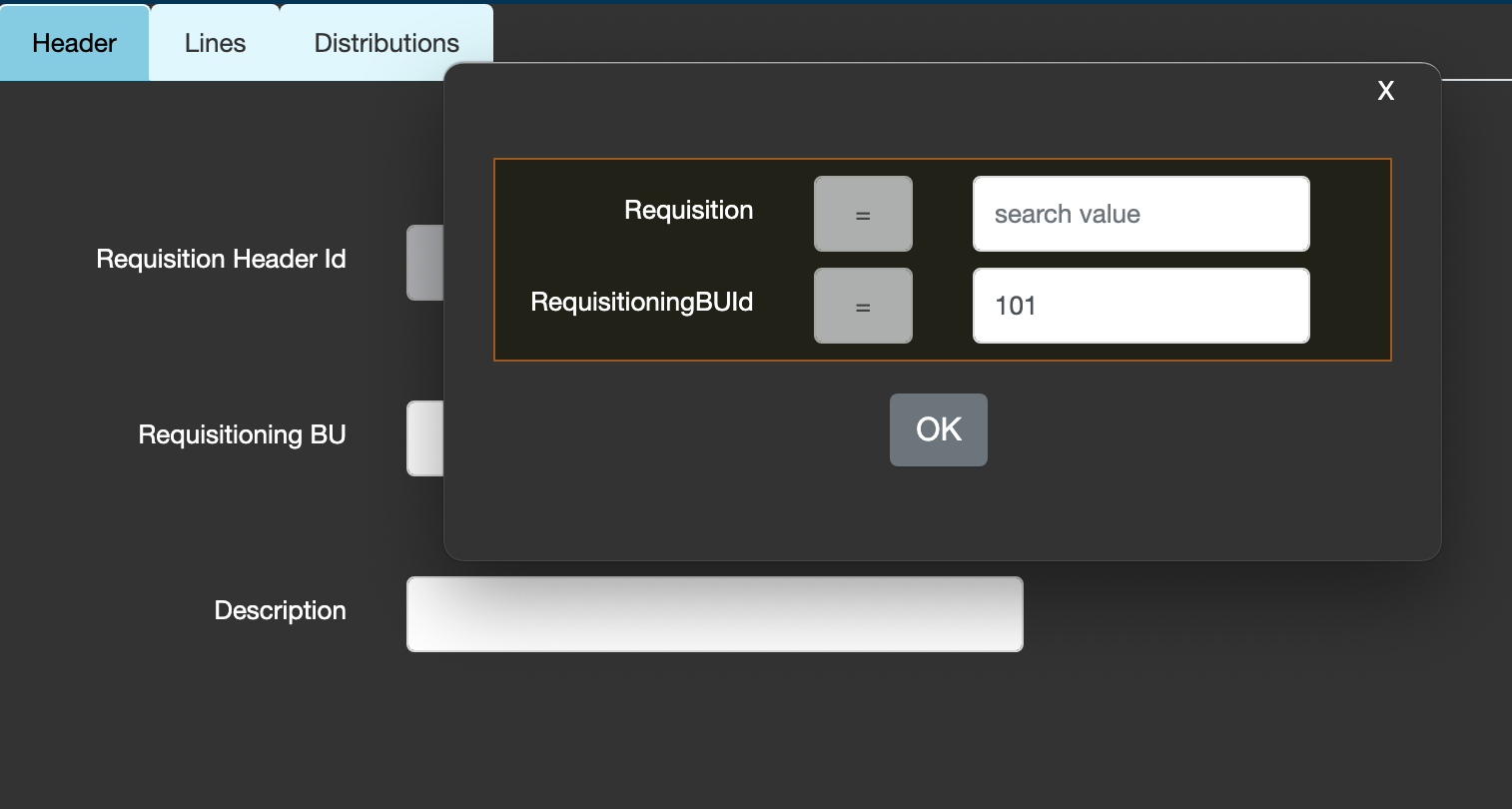
Enter the neccessary information and click on
OK
In the image below, 2 query parameters have been configured
-
RequisitioningBUId with a value of 101
-
Requisition Number which user will enter at run time
Upload data
-
After you're done making changes, you can upload your changes by clicking the
Upload DatabuttonUse this option if you
a. made changes to multiple resources or rows e.g. you changed data in both the parent and child resource, you added new rows, etc
b. created a new record e.g. you'creating a new Invoice or Purchase Requisition
-
Alternatively, you can select the specific rows of data that you've changed, select the
Updateaction from the list ofOther Actionsand click on theExecute Actionbutton -
To see what is happening or view any errors, click on
View Logsicon